 Ultra+ Wiki
Ultra+ Configuration Settings
Configure Ultra Plus settings using Ultra+ Manager (UPM) for the best experience, or by editing the UltraPlusConfig.ini file manually. Press F12 in-game to reload configuration changes.
⚠️ Important: Other keybinds can conflict with Ultra+ hotkeys. Most importantly, if F12 is set to take screenshots (Steam, etc.), it will conflict with the Ultra+ F12 reload keybind. Disable conflicting screenshot hotkeys or change them to different keys.
How to Change and Apply Settings
✅ Preferred Method - UPM (Ultra+ Manager):
- Use Ultra+ Manager for the easiest way to change settings
- After changing a setting in UPM, press F12 in-game to load the changes without restarting
- Automatically handles configuration file management
- All settings are always loaded on startup and you do not have to launch with UPM
⚠️ Alternative Method - Manual Config Editing: We do not recommend this method for the intended U+ experience.
- Find
UltraPlusConfig.iniin your game’s installation directory atue4ss/Mods/UltraPlusExtensions/scripts/config/UltraPlusConfig.ini - Open the file with any text editor (Notepad, Notepad++, etc.)
- Locate the setting you want to modify in the INI file
- Change the value after the
=sign to your desired option - Example:
LightingQuality = standard→LightingQuality = high - Save the file after making changes
Using Presets
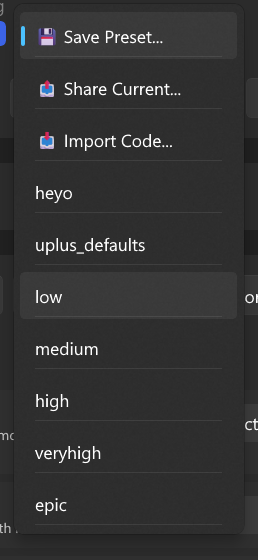
- All up to date U+ mods include presets
- uplus_defaults presets contain recommended defaults
- Quality presets will be generated on game launch
- Select uplus_defaults and then your preferred quality preset and apply settings like normal
Using the overlay
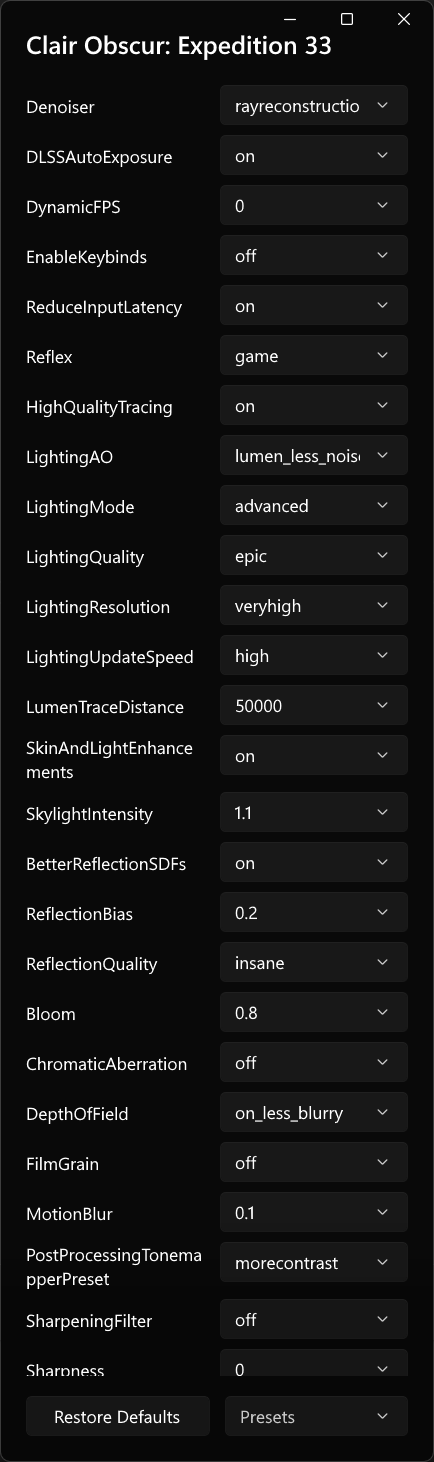
- UPM now has a built in overlay that uses CTRL + SHIFT + F11 for the default keybind
- Game must be in borderless for the overlay to work
- Newer mods have an AutoApplyConfig setting that will allow you to click settings in the overlay (or presets) and watch the visuals change live
Keybinds Configuration
UPM provides full keybind configuration for supported games.
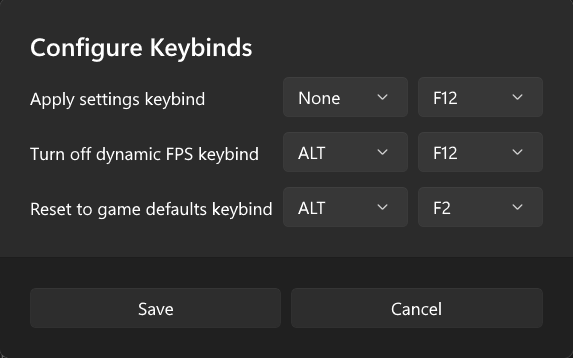
The keybinds.ini file allows you to configure the global keybinds used by Ultra+ Extensions.
Configuration Format
[GlobalKeybinds]
; Apply settings keybind
ApplySettings=F12

; Turn off dynamic FPS keybind
DisableDynamicFPS=ALT+F12

; Reset to game defaults keybind
ResetToGameDefaults=ALT+F1
Default Keybinds
- F12: Apply current settings
- ALT+F12: Turn off dynamic FPS and save settings
- ALT+F2: Reset all settings to game defaults (toggle)
Custom Engine Variables
You can add custom engine variables that will be applied after all Ultra+ settings:
- Create a file named
CustomSettings.iniin theue4ss/Mods/UltraPlusExtensions/scripts/configdirectory - Add your custom variables in the following format:
[custom]
r.Shadow.MaxResolution=8192
r.YourCustomVariable=value
These settings will override any conflicting Ultra+ settings and apply last in the loading order.
Performance Cost Table
TODO
Performance impact varies by hardware and game. VRAM usage increases with higher quality settings.